Manual
Welcome to KiCoMa! This guide follows food on its way from the supplier to the plate. Read it in order like a story, or jump straight to the chapter you need right now.
How it all works
KiCoMa connects the store, recipes and daily menus. Each step builds on the previous one:
- The storekeeper creates a stock item.
- The storekeeper receives the goods with a stock receipt.
- The cook builds a recipe from the goods.
- The nutrition consultant fills in nutrition facts for the goods and checks the recipe's nutrition per portion.
- The cook plans a daily menu with recipes and portions.
- The daily menu becomes a stock issue and the storekeeper issues it from stock.
- Inventory and reports show what everything cost and what is left in stock.
The application menu and the links in this guide follow your role.
Who does what
| Role | What they do |
|---|---|
| Storekeeper | Creates stock items, receives goods with stock receipts, approves stock issues and does the inventory. |
| Cook | Writes recipes, plans menus and daily menus, creates stock issues. Does not approve stock issues. |
| Nutrition consultant | Fills in nutrition facts and piece weights, edits recipes and daily menus and sees their nutrition. |
| Admin | Has the rights of a stockkeeper, cook and nutrition advisor. Additionally exports and cleans up data. |
| Superadmin | Has all rights. Manages users, roles and code lists in the administration and restores data from a backup. |
One user can have several roles at once.
1. Stock item
Who: Storekeeper Nutrition consultant Where: Stock items list, New stock item
Everything starts with a stock item. It must exist before you receive it or use it in a recipe.
- Unit: kg, g, l, ml or pcs. Choose carefully – later you can change it only in Unit management.
- Minimum stock: items below the minimum are shown in List of items requiring stocking.
- Allergens: recipes pick them up automatically from their ingredients.
- Nutrition facts are entered by the nutrition consultant, always per 100 g or 100 ml.
- Piece weight: for goods in pieces (pcs) enter it in g or ml. Without it nutrition cannot be calculated and the recipe shows a warning.
Good to know
- Stock quantity and value are changed by approved stock receipts and issues.
- Items with a negative quantity or value are shown in red with a warning icon in the list and in the PDF. Check them.
- The History button shows every change of the item, including unit changes.
- You can delete only an item that is not in stock, not in any recipe and not on any stock receipt or issue.
2. Receiving goods – stock receipt
Who: Storekeeper Where: Stock receipt list, New stock receipt
Goods arrived from a supplier? Put them on a stock receipt.
- Create a new stock receipt with a date and a note, for example the supplier or the invoice number.
- Add goods: quantity, unit, unit price without VAT and the VAT rate (12 % by default).
- Check the lines and click To stock. Only now does the stock go up and the average price get recalculated.
Good to know
- Until the receipt is stocked you can edit or delete it. Not afterwards.
- An empty receipt or a receipt with a zero price cannot be stocked.
- The line unit must be convertible to the stock unit: kg ↔ g, l ↔ ml. The stock unit is shown next to the item name.
- Every stock receipt can be downloaded as a PDF.
3. Recipes
Who: Cook Nutrition consultant Where: Recipes list, New recipe
A recipe says what is taken from the store and how much.
- Create a recipe: name, number of portions (at least 1), procedure and a note.
- Add ingredients from the store. Enter quantities for the whole recipe, i.e. for its number of portions.
Good to know
- The recipe calculates its price from average stock prices, collects allergens and shows nutrition per portion.
- The ingredient unit must be convertible to the stock unit: kg ↔ g, l ↔ ml. Pieces (pcs) stay in pieces.
- Unit doesn't match? Click Change unit on the ingredient, or go through the report Recipes with units not matching the stock.
- A recipe and the whole recipe list can be downloaded as a PDF.
5. Issuing goods – stock issue
Who: Cook Storekeeper Where: New stock issue from daily menu, Stock issue list, New stock issue
The menu is planned – time to send the ingredients to the kitchen.
- Create a stock issue from the daily menu. Enter the day and KiCoMa adds up the ingredients of all daily menus of that day based on portions.
- Menu changed? Click Update on the stock issue and the goods are reloaded from the current recipes.
- The storekeeper checks the stock issue and clicks Issue from stock. Only now are the goods taken off the stock.
Good to know
- Only a storekeeper can issue from stock.
- You can also create a stock issue manually and add the goods yourself.
- Only goods with enough stock can be issued. Otherwise KiCoMa lists what is missing and leaves the stock unchanged.
- The price is the average stock price at the moment of issuing.
- An issued stock issue cannot be edited, updated or deleted.
- Every stock issue can be downloaded as a PDF.
6. Inventory
Who: Storekeeper Cook
Time to check that the stock in the application matches reality.
- Stock items to be checked (PDF) – print it and walk through the store with a pen in hand.
- Stock on hand as of the selected date – an Excel file with the stock as of any day in the past.
- Stock export and Stock import – download the list to Excel, correct the quantities and upload it back. Storekeeper only.
Good to know
- Import does not change item units. Use Unit management for that.
- When the stock as of a date cannot be calculated, it is left blank and the export_warning column tells you why.
7. Unit management
Who: Storekeeper Nutrition consultant (stock items), Cook Nutrition consultant (recipe ingredients) Where: Unit management in the user menu, or the Change unit button
Want to count in grams instead of pieces? Unit management safely recalculates everything.
- A stock item unit change recalculates the stock, minimum stock, recipe ingredients and all stock receipt and issue lines, approved ones included. The total stock value stays the same.
- An ingredient unit change recalculates only that one recipe line.
- Choose the new unit and the factor – how many new units equal 1 old unit. For kg ↔ g and l ↔ ml KiCoMa fills it in for you.
- Fill in the factor source, e.g. “weighed 10 pieces” or “from the package”.
- Click Preview. You will see examples, the impact on recipes and documents, and any warnings.
- Confirm the warnings and click Apply change.
Good to know
- The latest change can be reverted with Undo, as long as the related data has not changed since.
- Every change is recorded in the history and cannot be edited or deleted.
8. Reports
Who: All roles
- Total value of stock receipts/issues per month – number and value of approved documents for the last three months.
- Catering unit – price per portion of each recipe and the price of all meals for the selected day.
- Items not used on any recipe – goods you can clean up.
- Stock items by unit used – overview of units. Click a unit to see its goods.
- Recipes with units not matching the stock – ingredients and document lines with a unit that cannot be converted. Fix them before you create a stock issue.
All prints are PDFs you can view, save or print.
9. When something goes wrong
| What happened | What to do |
|---|---|
| A stock issue from the daily menu cannot be created because of units. | Open the incorrect units report and fix the unit in Unit management. |
| Issuing from stock ended with an error. | Some goods are missing in stock or have a zero price. Receive them with a stock receipt first. |
| The unit of a stock item cannot be changed. | That's on purpose. Use the Change unit button, it recalculates everything at once. |
| A form says the unit has changed in the meantime. | Someone just changed the item unit. Reload the page and enter the quantity and price again. |
| There is a warning next to the nutrition facts. | An item in pieces has no piece weight. Ask the nutrition consultant to fill it in. |
| A stock item cannot be deleted. | The item is in stock, in a recipe or on a stock receipt or issue. Unused goods are listed in the report Items not used on any recipe. |
| A recipe cannot be added to a menu. | The recipe is already in the menu. Just change its portions. |
| I can't see a menu or a link. | You are missing a role. Ask the admin to add you to the right group. |
Still stuck? Have a look at News, to see whether something has changed, or contact the admin.
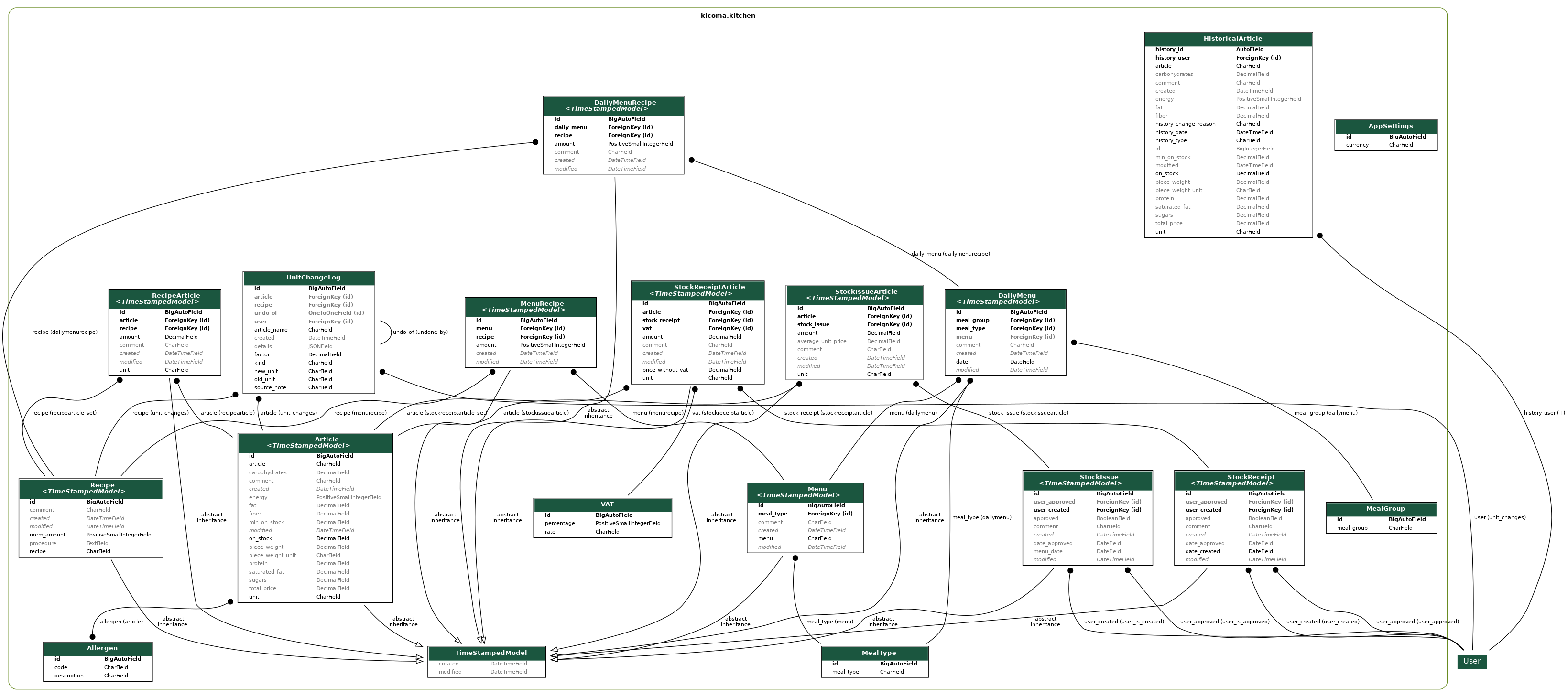
Data model